
How to Edit Videos on iPhone: A Complete Beginner’s Guide
- July 30, 2026
You do not need bulky software anymore to make videos look as if they were made by a professional, nor do you need an expensive computer. If you have an iPhone, you already possess everything necessary to film, modify, and distribute professional-level videos. It doesn’t matter if you are editing for TikTok, Instagram Reels, YouTube, or Facebook videos or just working on personal memories; learning some basic iPhone video editing cuts down on the time you use to create content and allows you to churn out something that looks great, producing good videos.
This guide walks you through editing your videos step by step, using the built-in Photos app and guides that will help you make better-quality videos with practical tips.
Why Edit Videos on an iPhone?
Modern iPhones come equipped with powerful cameras and built-in editing tools that make video editing simple and convenient.
Benefits include:
- No computer required
- Quick editing on the go
- Easy sharing to social media
- High-quality export
- Beginner-friendly interface
- Free editing tools included
For most everyday creators, an iPhone offers more than enough editing power.
How to Edit Videos on iPhone
Video editing on iPhone is very easy because iPhone has its own video editing options. Here you will learn how to edit videos on iPhone and what options you will get to edit a video on an iPhone. These are given below:
How to edit a Video
The easiest way to edit videos is through Apple’s built-in Photos app.
To begin:
- Open Photos
- Select the video you want to edit
- Tap Edit in the upper-right corner
You’ll now see several editing tools available.
How to Trim a Video
One of the most common edits is trimming unwanted footage.
To trim:
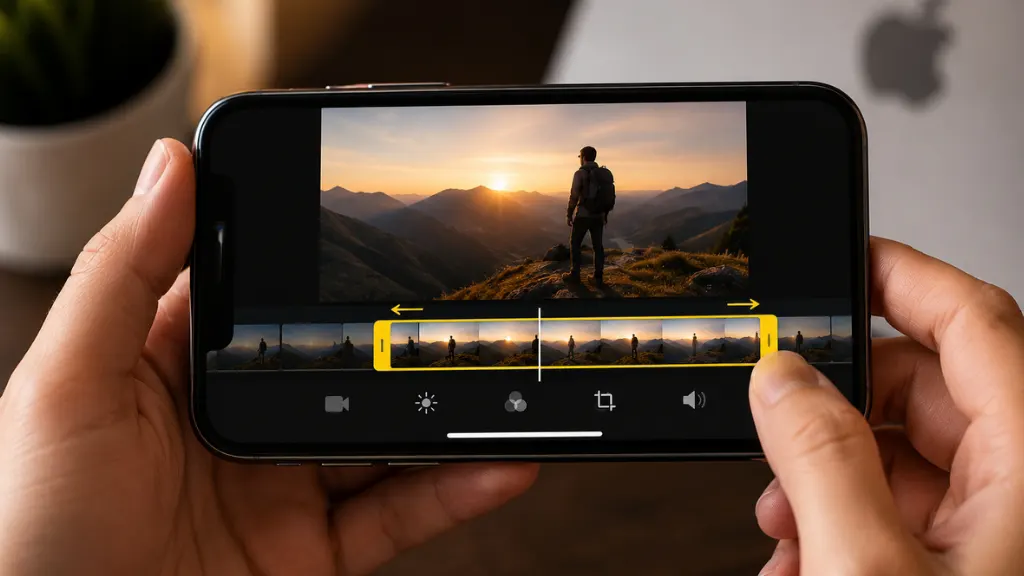
- Drag the yellow handles at either end of the timeline
- Remove unnecessary beginning or ending sections
- Tap Done
- Save as a new clip or overwrite the original
Trimming helps remove mistakes, pauses, and unnecessary scenes.
How to Crop and Straighten a Video
If your video isn’t perfectly aligned, you can adjust it.
Tap the Crop icon to:
- Rotate the video
- Straighten crooked footage
- Change aspect ratio
- Crop unnecessary edges
This is especially useful for social media content.
How to Adjust Lighting and Colors of a Video
The Photos app includes several professional adjustment tools.
You can modify:
- Brightness
- Exposure
- Contrast
- Saturation
- Warmth
- Highlights
- Shadows
- Black Point
- Vibrance
Small adjustments often make videos look much more professional.
Avoid increasing brightness too much, as this may reduce image quality.
How to Apply Filters in a Video
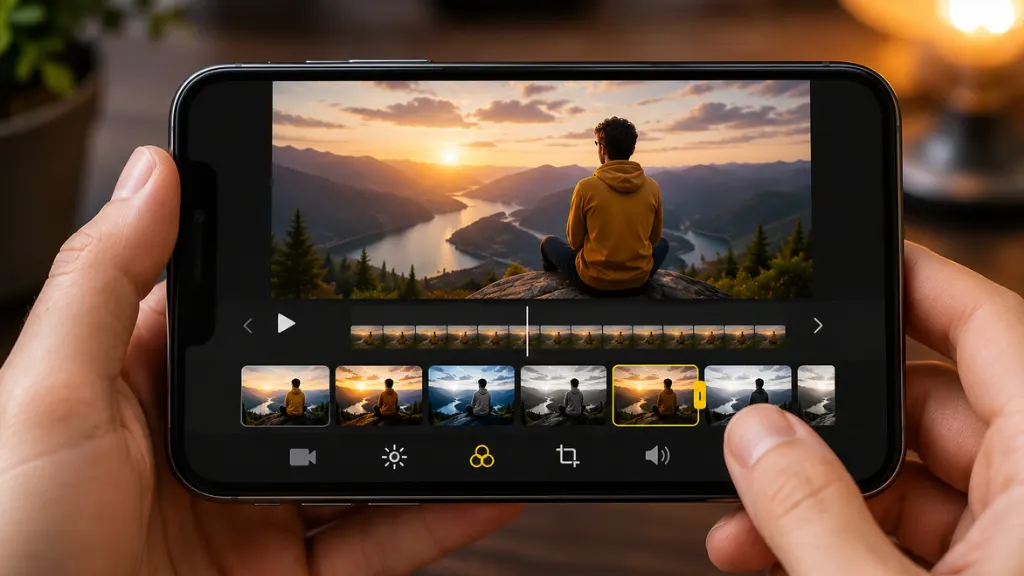
If you want a consistent visual style, use built-in filters.
Popular filters include:
- Vivid
- Dramatic
- Silvertone
- Noir
- Warm
- Cool
Filters can improve the mood without requiring manual adjustments. Use them sparingly for a natural appearance.
How to Remove Unwanted Audio from a Video
Sometimes background noise ruins an otherwise perfect clip.
Inside the Photos editor:
- Tap the speaker icon
- Mute the original audio completely
You can later add music using another editing app.
Final Thoughts
Editing videos on iPhone has become easier. The Photos app does basic edits: Trimming, cropping, color adjustments, and various apps like iMovie, CapCut, VN Video Editor & InShot can help create professional-looking content.
Novice video editors think that using every effect they have helps their videos, but the way to better video is clarity through clean cuts and even audio, whilst pleasing visuals. And within a small time, your iPhone can transition into a shabby tool to film shareable videos that you can post wherever you want.
Whether you’re new to recording family memories or are a content creator looking to build an audience online, learning how to add polish and shine to your videos using iPhone video editing is a powerful skill that can bring your production quality up several notches.