cci logo

Clipping Creations India

  • Home
  • Image Editing Services
    • Background Remove
    • Clipping Path Service
    • Multiple Clipping Path
    • Ghost Mannequin Effect
    • Car Photo Editing
    • Product Photo Editing
    • Image Masking
    • Drop Shadow
    • Color Correction
    • Photo Retouching
    • Vector services
    • Photo Editing
  • Blog
  • Pricing
  • Our Portfolio
  • Free Trial
Home  »  Photo Editing   »   How to Edit Words Out of a Picture? − The Ultimate Guide!

How to Edit Words Out of a Picture? − The Ultimate Guide!

  • Mark Mendoza
  • March 7, 2025
  •  
    • Photo Editing

How to Edit Words Out of a Picture

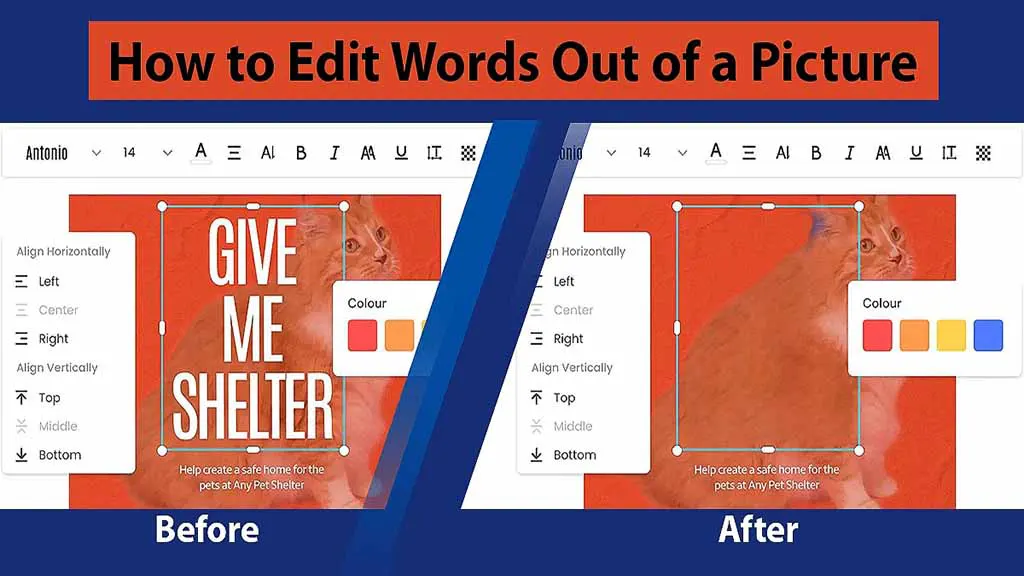
Have you captured a perfect picture only to find out later that there is some distracting text in the background? Well, fear not! We’ll discuss how to edit words out of a picture in this simple guide!

Whether it’s a watermark, some graffiti, or even a street sign, it is indeed frustrating when unwanted text ruins an otherwise great picture. You can remove text from an image easily with an online photo editor.

Or if you’re not worried about the technicalities, you can jump straight into an advanced photo editor like Adobe Photoshop. That being said, this article explains both ways to remove text from an image. Let’s get started!

How to Remove Text from an Image in Adobe Photoshop – Step-by-step Guide

Adobe Photoshop is a fully featured image-editing software that offers a wide range of tools and techniques. Although it has a steeper learning curve than online photo editors, Photoshop delivers better results than most online photo editors. Follow these steps in Adobe Photoshop to remove text from a picture −
how to edit words out of a picture Load the picture

Load the Image in Adobe Photoshop

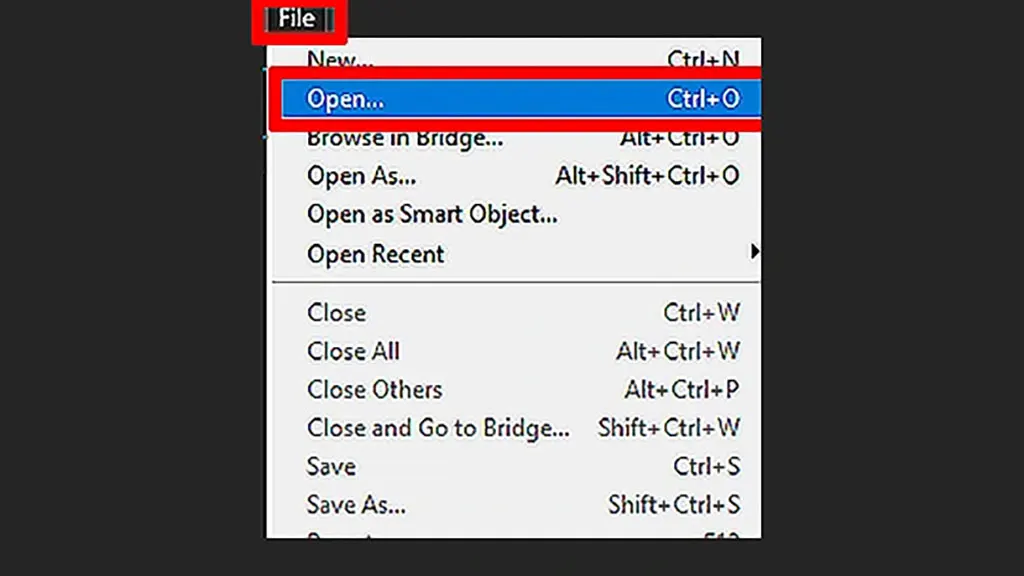
First, you’ll have to open the image in Photoshop. From the toolbar above, click on File>Open. Photoshop opens a dialogue box where you can browse and select the image you want to edit.
how to edit words out of a picture Use the Marquee Tool

Use the Marquee Tool/Lasso Tool to Select the Unwanted Text

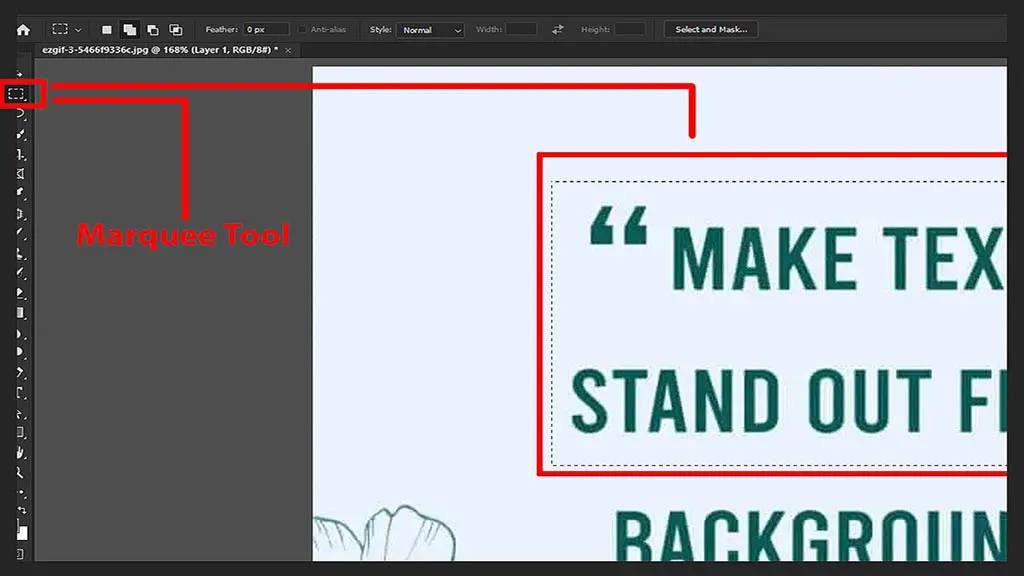
Once you load the image into Photoshop, select the Marquee Tool from the toolbar on the left side of the screen. Select the Marquee Tool and drag a box around the unwanted text.

Or, you can use the Lasso Tool for more precise results. Select the Lasso Tool and draw a precise path around the text you want to remove.

Note that it is easier to make a selection with the Marquee Tool. The Marquee Tool gives you better control when selecting an area.
how to edit words out of a picture Apply the ‘Content-Aware Fill’

Apply the ‘Content-Aware Fill’ in the Selected Area

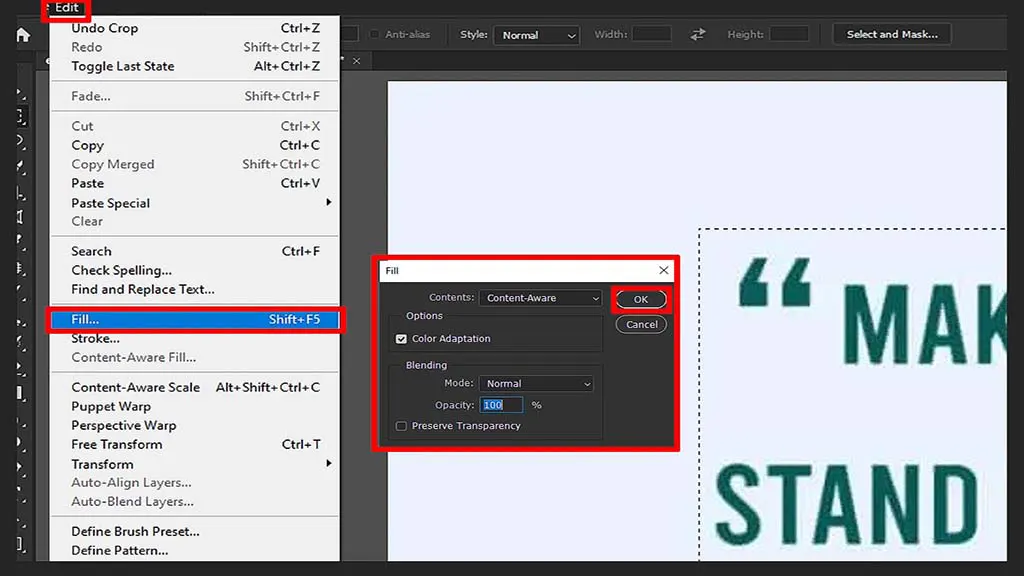
After you select the unwanted text, click Edit > Fill from the toolbar. Photoshop displays a dialogue box where you can select ‘Content-Aware’ under the ‘USE‘ sub-menu.

Now sit back and relax as Photoshop analyses the pixels surrounding the selected area and fills it with content that matches the background. Easy, isn’t it?
Refine the Image

Refine the Image (Optional)

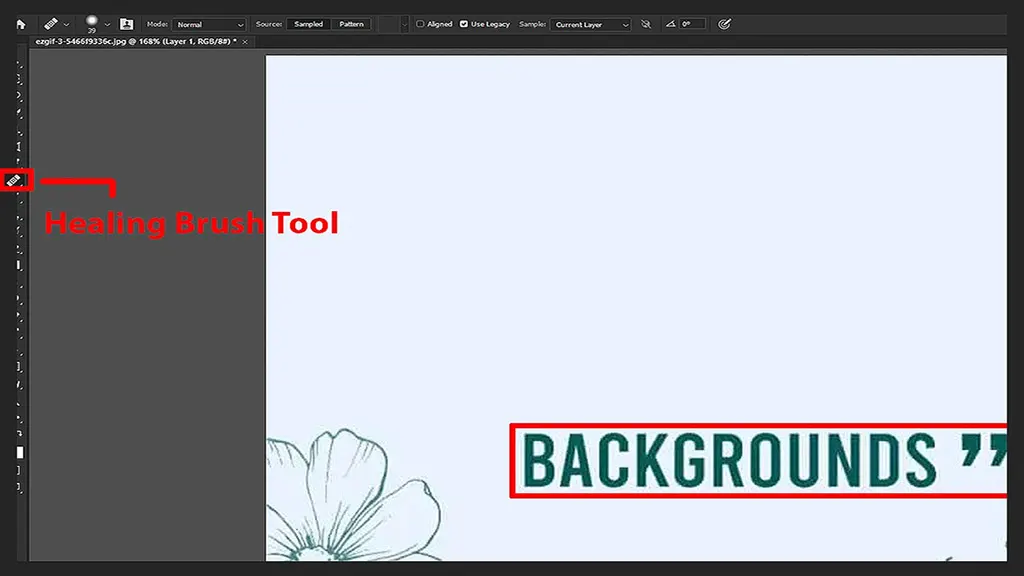
After Photoshop completes the Content-Aware Fill process, you may need to touch up the area where you removed the text. Use the Clone Stamp Tool or Healing Brush Tool to work on areas that may distract consumers. As a rule of thumb, we want the image to appear as natural as possible.
Save and Share

Save the Photo

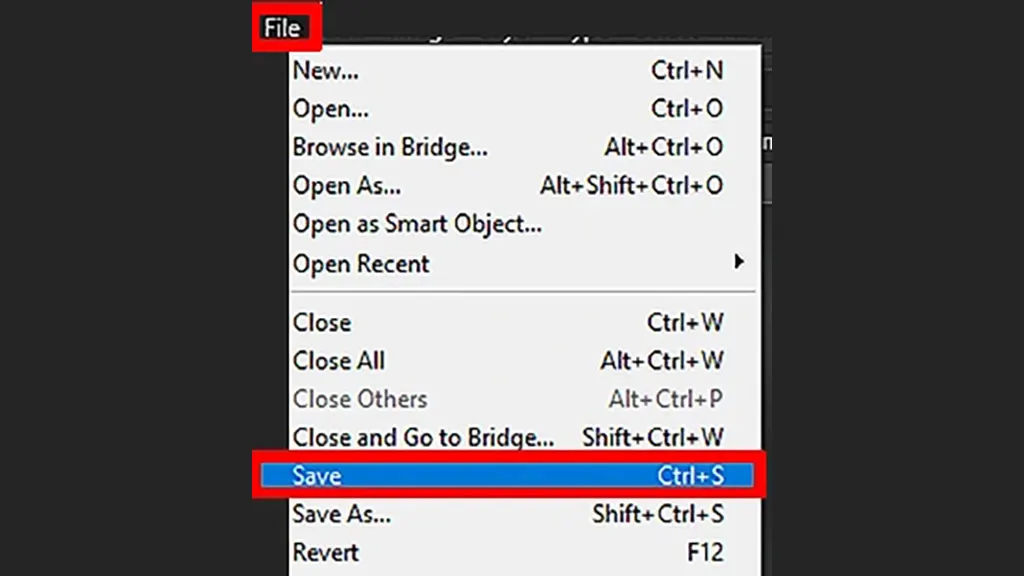
After removing the text and completing your edits, save the image. For this, click on File>Save As. In the dialogue box that appears, you can choose a storage location and a name for your image.

Follow the steps above to remove text from pictures and create a seamless, natural-looking result. On the other hand, you can use the same steps to remove unwanted objects from an image.
How to Remove and Add Text in an Image Online?

How to Remove and Add Text in an Image Online?

Although removing or adding text may seem challenging, you can do it easily online. You can choose from plenty of online image editors, such as Pixlr, Fotor, Canva, and PicsArt. For this article, we’ll be working with PicsArt. Here’s how you can remove and add text from a picture using PicsArt online—

1. Upload the Image

First, go to the PicsArt website and click on ‘Get started for free.’ Next, you’ll have to upload the image you want to edit by using the ‘Upload Image’ option.

2. Use the Eraser Tool to Remove the Text

Click on the ‘Tools’ tab at the bottom of the screen. From there, select the ‘Eraser’ tool and adjust the brush size appropriately. Select the Eraser tool and carefully remove the text. If you accidentally remove too much, you can use the ‘Undo’ option.

3. Add Text

To add text to your image, click on the ‘Text’ tab at the bottom of the screen. Next, select the type of text you want, e.g., header, sub-header, or body text.

Choose a suitable font, colour, and size for the text. Lastly, type in the text you want to include. Once you add the text, adjust its position and size using the ‘Move’ and ‘Resize’ tools.

4. Save the Image

After you’re done working on the image, click on the ‘Save’ option at the top of the screen. You can save the image directly to your computer or share it straight to social media from PicsArt. Learn more: How to Photoshop a Car Into a Picture in 8 Easy Steps.

Final Verdict

When you learn how to edit words out of a picture, you’ll also learn how to use removal tools so you can remove other unwanted objects from an image.

Whether you remove text online or use Adobe Photoshop, use Healing and Cloning tools to make the edited area blend seamlessly with the surrounding image. Best of luck!

FAQ's

Is it possible to edit text on a JPEG?

Yes, but first you’ll have to convert the JPEG file into a PDF file. Once you’ve converted your JPEG file into a PDF document, you can open it in Microsoft Word and edit the text in it.

How do I convert an image to editable text without software?

For this, you’ll have to upload the image to your Google Drive. Next, right-click on the image and use the ‘Open With’ option to open the image in Google Docs. Once you do, the image will be opened in Google Docs, and the extracted text will be visible below the image.

How do I remove text from an image in a PDF?

You can use Adobe Acrobat for this. After opening the PDF file in Acrobat, click on Tools > Redact. From the ‘Edit’ menu, select ‘Redact Text & Images.’ Next, right-click on the text you want to remove and select ‘Redact.’

Can you take text out of a picture?

There are many programs that use OCR (Optical Character Recognition) to analyse the words in an image and convert them into text. OCR technology can be found in Google products, Adobe Acrobat, and more.

  • Facebook
  • LinkedIn
  • WhatsApp

(Visited 242 times, 19 visits today)

Post navigation

< Previous
Next >

Leave a Reply Cancel reply

Your email address will not be published. Required fields are marked *

Top Services:

  • Clipping Path Service
  • Car Image Editing Service
  • Ghost Mannequin Service
  • Product Photo Editing Service
  • Multiple Clipping Path Service
  • Ghost Mannequin Service
  • Color Change Service
  • Drop Shadow Service
  • Color Change Service
  • Photo Editing Service
  • Image Masking Service

Popular posts:

  • How to Create See-Through Clothes in Photoshop: Easy…See Through Cloth in Photoshop − Best Practice
  • How to Move Eyes in Photoshop and Online ToolsHow to Move Eyes in Photoshop and Online Tools
  • How to Clip in GIMP: Step-by-Step Guide to Clipping…Step-by-Step Guide to Clipping Mask & Image Editing
  • How to Reverse Video in Photoshop: Photoshop GuideHow to Reverse Video in Photoshop Photoshop Guide
  • How to Export Photoshop ActionsHow to Export Photoshop Actions
  • How to Create an Alpha Channel in Photoshop?How to Create an Alpha Channel
  • How To Fix A Lazy Eye In PhotoshopHow To Fix A Lazy Eye In Photoshop
  • How to Fix a Dark Polaroid Picture? Easy Solution to…How to Fix a Dark Polaroid Picture
  • 10 Professional Photo Manipulation Artists You Must Follow10 Professional Photo Manipulation Artists You Must Follow
  • How to Swap Eyes in Photoshop Like a ProHow to Swap Eyes in Photoshop

Recent Post

  • Fashion Photo Editing Services: Why Professional Editing Matters for Fashion Brands
  • Car Image Editing Services: A Complete Guide for Automotive Image Editing
  • Remove IPhone Background: Easy Ways to Edit Photos Like a Pro
  • How to Remove Background in Illustrator?
  • Outsource Ghost Mannequin Image Editing Service

Categories

  • Background Removal
  • Car Photo Editing
  • Clipping Path
  • Color Correction
  • Ghost Mannequin
  • Image Masking
  • Photo Editing
  • Photo Retouching
  • Product Photo Editing
  • Tutorial
  • Vector Editing

About CCI

Clipping Creations India is a brand operated by Arafin Media. Here, every pixel tells a story. We offer our unparalleled service and invest our most talented minds at your solution whether you are a photographer or an agency. We are the gateway to exceptional photo editing services!

Get Your Quote

Quick Menu

  • About Us
  • Contact Us
  • Blog
  • Terms and Conditions
  • Privacy & Policy

Payment Method

  • PayPal
  • Stripe
  • Western Union
  • Skrill
  • Payoneer
  • Wise

Get In Touch

+8801715-491890

hello@clippingcreationsindia.com

Canada Office: 1401-2900 Carling Ave. Ottawa, ON, K2B 7J6

India Office: C-20, Lajpat Nagar 3, New Delhi, Delhi 110024, India

Bangladesh Office: 15 Bijoy Nagar, Abdur Rouf Tower (6th Floor), Dhaka – 1000, Bangladesh

Copyright © 2012 - 2026 Clipping Creations India | All rights reserved.

  • facebook
  • twitter
  • instagram
  • pinterest
  • linkedin

Live Chat