cci logo

Clipping Creations India: Clipping Path Service Provider

  • Home
  • Clipping Path Services
    • Clipping Path Service
    • Multiple Clipping Path Service
    • Background Remove Service
    • Ghost Mannequin Service
    • Car Photo Editing Service
    • Product Photo Editing Service
    • Image Masking Service
    • Drop Shadow Service
    • Color Correction Service
    • Photo Retouching Service
    • Vector Conversion Service
    • Photo Editing Service
  • Blog
  • Pricing
  • Our Portfolio
  • Free Trial
Home  »  Tutorial   »   How Do You Blur a Face in a Picture?

How Do You Blur a Face in a Picture?

  • Mark Mendoza
  • August 27, 2026
  •  
    • Tutorial
  • Tags: blur face in a image, how to blur face in image

how do you blur a face in a picture

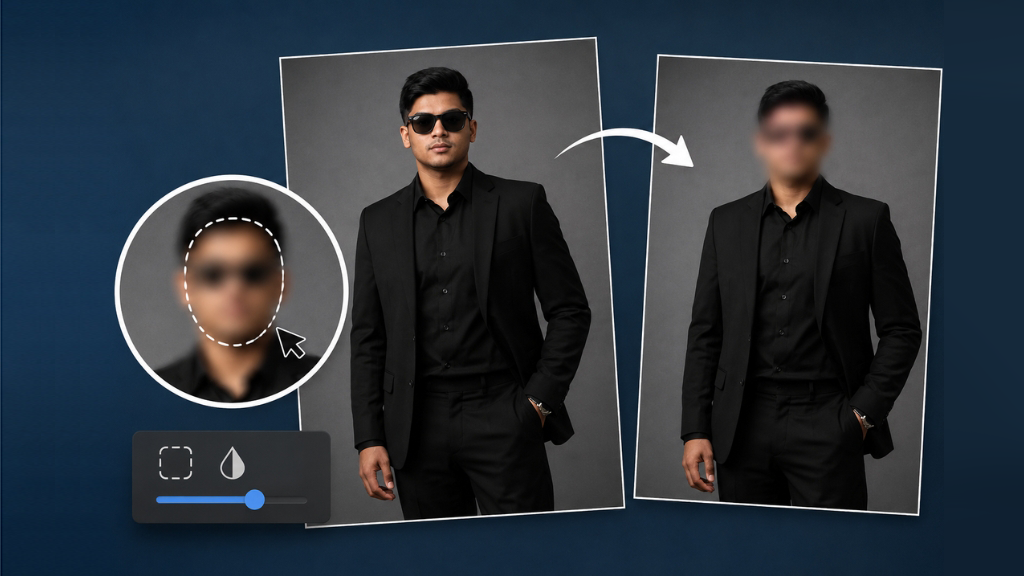
Sometimes a person’s face in a photo has to be excluded before the image is posted online or on social media. You might be trying to protect someone’s privacy, need to get a distracting face out of a picture, or perhaps just want an image for your website, social media post, or presentation. Fortunately, there are various basic photo editing techniques that will allow you to blur a face in an image.

You will not need to be an advanced editor in most cases. Depending on what device and software you are using, you can blur a face with a specific blur tool, a selection tool like in advanced editing software, a mobile photo editing app, or an online image editor.

In this guide, we will learn how to blur a face while keeping the rest of the image sharp and natural.

How Do You Blur a Face in a Picture Using Photoshop?

This is the step-by-step guide to blur a face in a picture. Follow these instructions to blur a face like a professional. The steps are given below
how do you blur a face in a picture

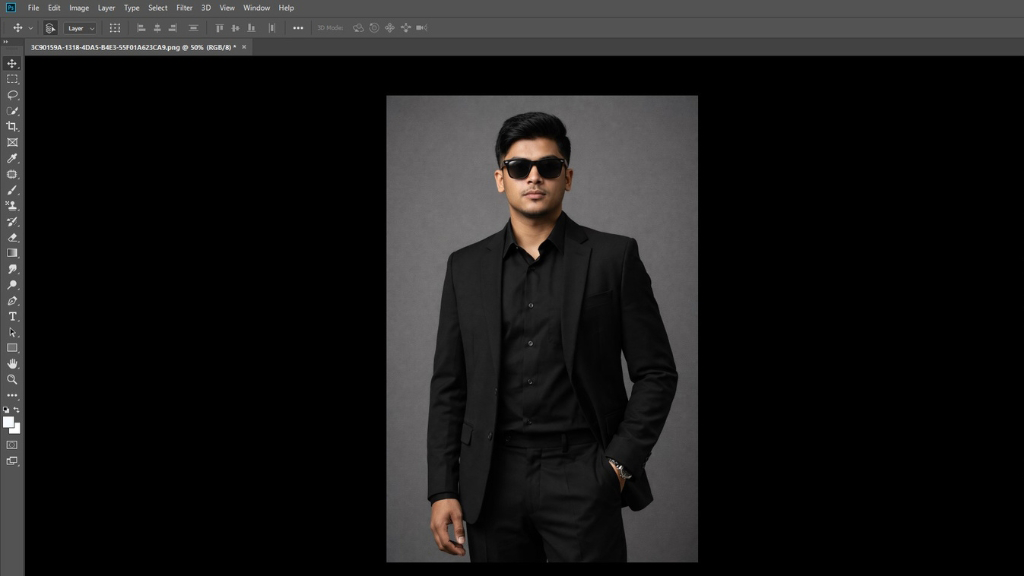
1. Open the image in Photoshop.

First, select the image that you want to use to blur a face and open the image in Photoshop.
how do you blur a face in a picture

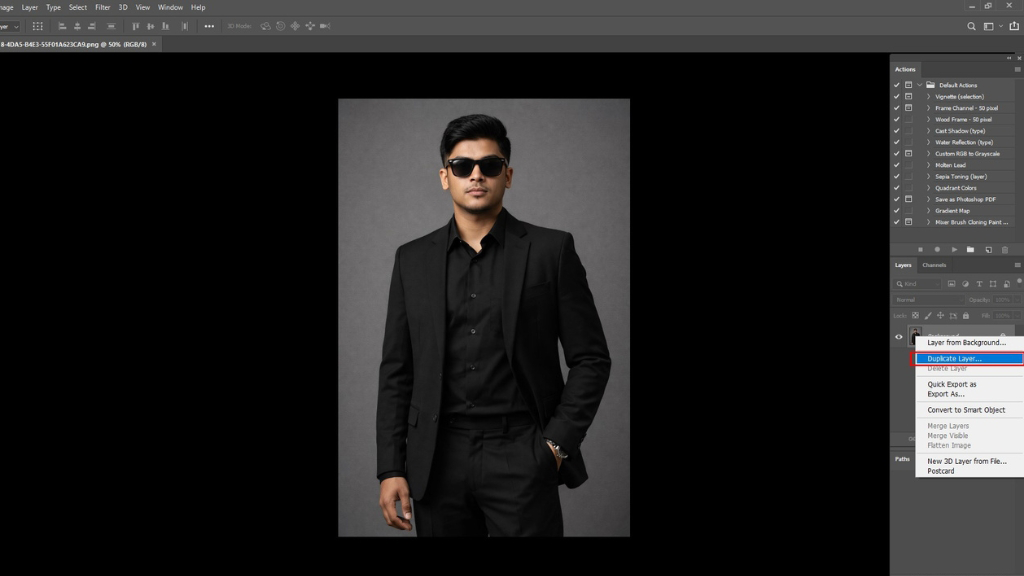
2. Make a duplicate layer

When you open the image in Photoshop, look to the right in the panel section where you can find a layer section. Select the layer and click the right button, then select Duplicate Layer. Make a duplicate layer.
how do you blur a face in a picture

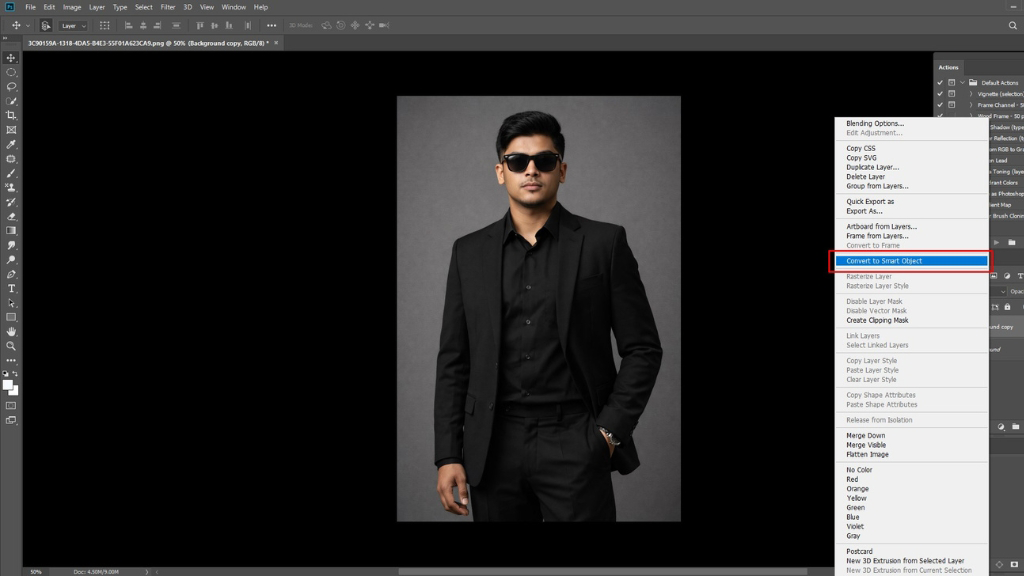
3. Convert the layer.

When you have a duplicate layer. Now select the duplicate layer and click the “right button” and select “Convert to smart object.”
how do you blur a face in a picture

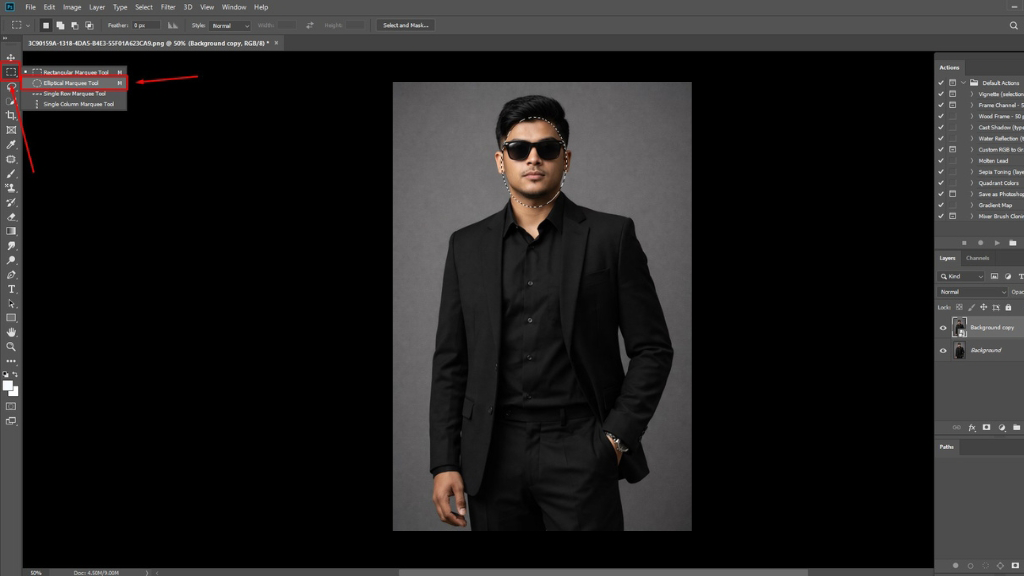
4. Select the blur area.

Look at the left-side toolbar where you get the “Marquee tool.” Click the right button on the marquee tool and select “Elliptical Marquee tool.” Make a selection where you want to blur the area.
how do you blur a face in a picture

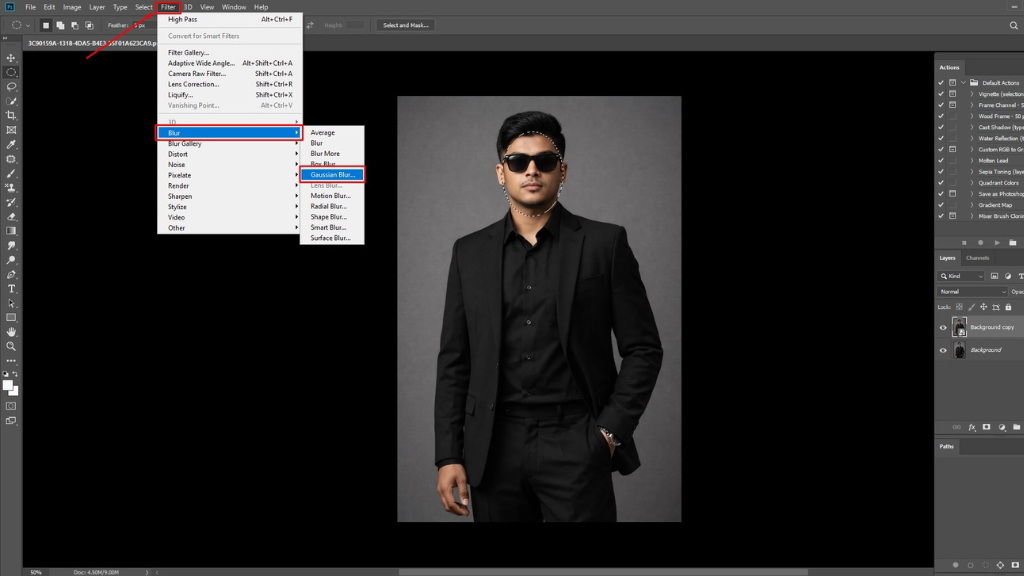
5. Click the “Filter” in the top bar.

Click the “Filter” in the top bar and scroll down to “Blur,” and a new dropdown will open where you will get “Gaussian Blur.” Select “Gaussian Blur.”
how do you blur a face in a picture

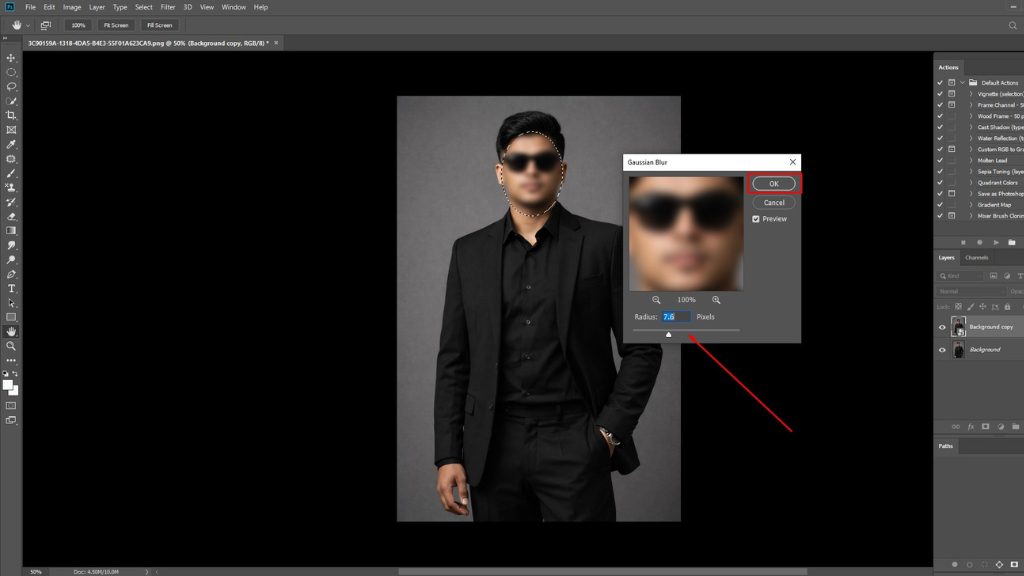
6. Adjust the “Radius.”

When you click on “Gaussian Blur,” a new window will open. Here you will get an option like “radius.” Now, you will adjust the setting according to your needs, like how much blur you want, and click Ok.
how do you blur a face in a picture

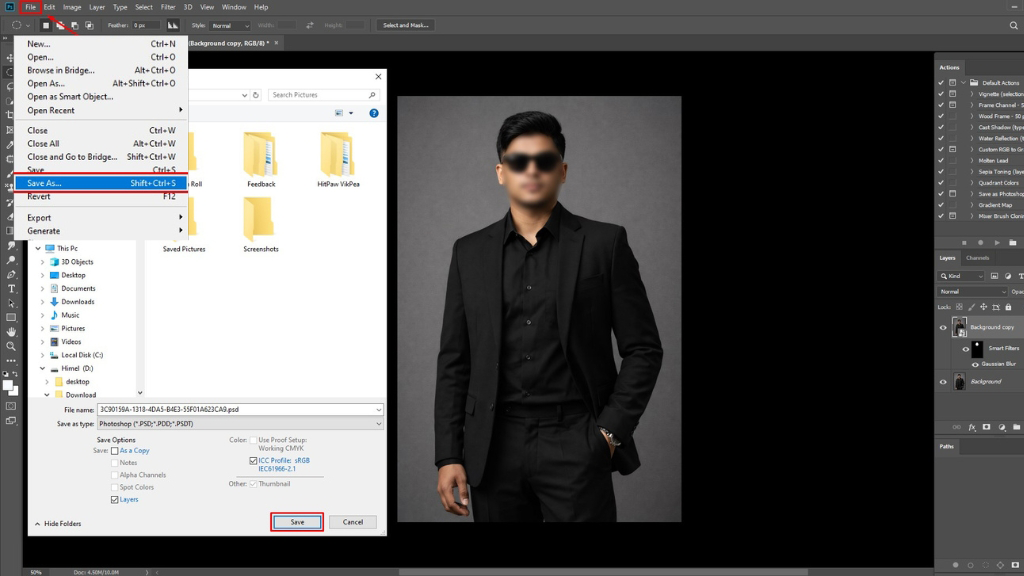
7. Finally save it.

When you have done the face blur and made sure that the face has blurred properly, then click “OK.” The image is now ready to meet your needs. Save the file, and the process ends.

Conclusion

Whether you’re a novice at photo editing or not, you will be pleased to know that it is quite simple to learn how to blur a face in a photo. You get everything from detailed control in Photoshop to quicker options with mobile or online editors for day-to-day edits.

Choose a face wisely and apply sufficient blur to conceal facial details, and review the edges before exporting. If the main concern is privacy, use stronger pixelation or face cover, not a light blur.

Most importantly, always review the finished image at full size. Make sure you haven’t missed another visible face or left enough facial detail for someone to identify the person.

FAQ's

How do you blur a face in a picture?

You can blur a face using Photoshop, a mobile photo editing app, or an online editor. In Photoshop, select the face, apply Gaussian Blur, adjust the blur radius, and save the edited image.

What is the easiest way to blur a face in Photoshop?

The easiest method is to select the face with the Elliptical Marquee Tool and apply Filter > Blur > Gaussian Blur. Adjust the Radius until the facial details are sufficiently concealed.

How much blur should I use on a face?

The amount of blur depends on the image and your purpose. If you’re blurring a face for privacy, use enough blur or pixelation that the person’s facial features cannot be recognized.

Can I blur a face without affecting the rest of the picture?

Yes. By selecting only the face before applying the blur effect, you can keep the rest of the image sharp and unchanged. Using a duplicate layer or Smart Object can also make the editing process safer and easier to adjust.

  • Facebook
  • LinkedIn
  • WhatsApp

(Visited 2 times, 2 visits today)

Post navigation

< Previous
Next >

Leave a Reply Cancel reply

Your email address will not be published. Required fields are marked *

Top Services:

  • Clipping Path Service
  • Car Image Editing Service
  • Ghost Mannequin Service
  • Product Photo Editing Service
  • Multiple Clipping Path Service
  • Ghost Mannequin Service
  • Color Change Service
  • Drop Shadow Service
  • Color Change Service
  • Photo Editing Service
  • Image Masking Service

Popular posts:

  • How to Create See-Through Clothes in Photoshop: Easy…Photoshop see-through clothing effect guide
  • How to Move Eyes in Photoshop and Online ToolsHow to Move Eyes in Photoshop and Online Tools
  • How to Clip in GIMP: Step-by-Step Guide to Clipping…Step-by-Step Guide to Clipping Mask & Image Editing
  • How to Reverse Video in Photoshop: Photoshop GuideHow to Reverse Video in Photoshop Photoshop Guide
  • How to Export Photoshop ActionsHow to Export Photoshop Actions
  • How to Create an Alpha Channel in Photoshop?How to Create an Alpha Channel
  • How To Fix A Lazy Eye In PhotoshopHow To Fix A Lazy Eye In Photoshop
  • How to Fix a Dark Polaroid Picture? Easy Solution to…How to Fix a Dark Polaroid Picture
  • Guide to Using Blood Brushes for Photoshop:…Guide to Using Blood Brushes for Photoshop Everything You Need to Know
  • 10 Professional Photo Manipulation Artists You Must Follow10 Professional Photo Manipulation Artists You Must Follow

Recent Post

  • How to Make an Image Higher Resolution: 8 Easy Methods
  • How to Remove White Background from Image: A Complete Beginner’s Guide
  • How Do You Blur a Face in a Picture?
  • What Is the Best AI Image Generator? A Complete Guide to Choosing the Right One
  • How to Fix Unfocused Pictures?

Categories

  • AI Image Generator
  • Background Removal
  • Car Photo Editing
  • Clipping Path
  • Color Correction
  • Ghost Mannequin
  • Image Masking
  • Image Transparent
  • Photo Editing
  • Photo Editing Services
  • Photo Retouching
  • Product Photo Editing
  • Tutorial
  • Vector Editing

About CCI

Clipping Creations India is a brand operated by Arafin Media. Here, every pixel tells a story. We offer our unparalleled service and invest our most talented minds at your solution whether you are a photographer or an agency. We are the gateway to exceptional photo editing services!

Get Your Quote

Quick Menu

  • About Us
  • Contact Us
  • Blog
  • Terms and Conditions
  • Privacy & Policy

Payment Method

  • PayPal
  • Stripe
  • Western Union
  • Skrill
  • Payoneer
  • Wise

Get In Touch

+8801715-491890

hello@clippingcreationsindia.com

Canada Office: 1401-2900 Carling Ave. Ottawa, ON, K2B 7J6

Bangladesh Office: 15 Bijoy Nagar, Abdur Rouf Tower (6th Floor), Dhaka – 1000, Bangladesh

Copyright © 2012 - 2026 Clipping Creations India | All rights reserved.

  • facebook
  • twitter
  • instagram
  • pinterest
  • linkedin

Live Chat