cci logo

Clipping Creations India: Clipping Path Service Provider

  • Home
  • Clipping Path Services
    • Clipping Path Service
    • Multiple Clipping Path Service
    • Background Remove Service
    • Ghost Mannequin Service
    • Car Photo Editing Service
    • Product Photo Editing Service
    • Image Masking Service
    • Drop Shadow Service
    • Color Correction Service
    • Photo Retouching Service
    • Vector Conversion Service
    • Photo Editing Service
  • Blog
  • Pricing
  • Our Portfolio
  • Free Trial
Home  »  Tutorial   »   How to Edit Signature in Outlook: A Complete Guide

How to Edit Signature in Outlook: A Complete Guide

  • Mark Mendoza
  • August 2, 2026
  •  
    • Tutorial

Your email signature is more than just your name at the end of your email. It is your personal identity or the right professional appearance for your brand that makes your messages look credible. We have multiple purposes, like changing & editing the Outlook signature. Therefore, it is crucial that you learn how to edit your signature in Outlook.

You will also learn how to edit your Outlook signature on Windows. Mac, Outlook Web App, and Outlook Mobile App in this guide.
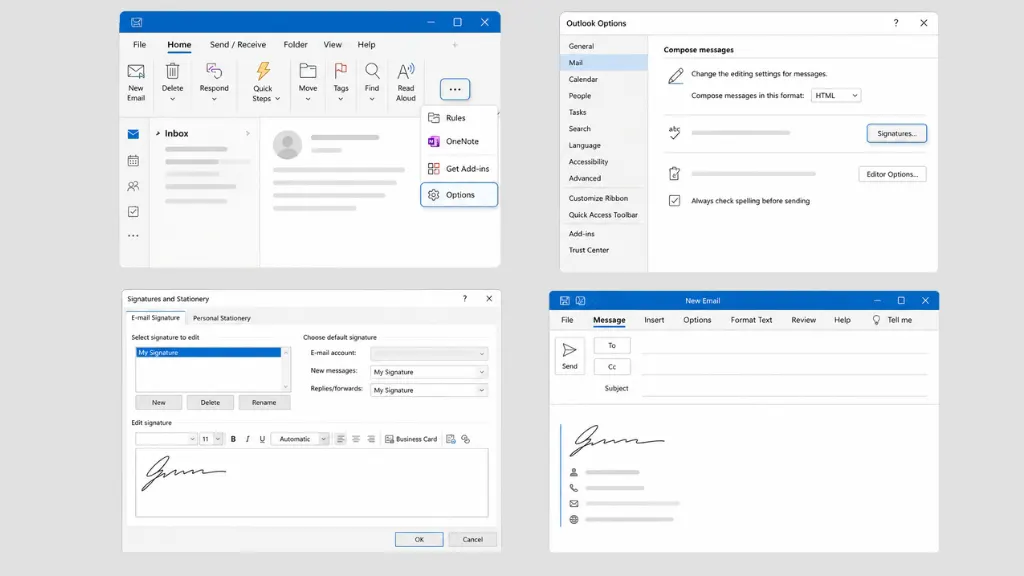
How to Edit Signature in Outlook for Windows

How to Edit Signature in Outlook for Windows

If you’re using the Outlook desktop application on Windows, follow these steps:

1: Open Outlook

Launch Microsoft Outlook on your computer.

2: Open Outlook Options

Click:

File → Options

A new settings window will appear.

3: Go to Mail

From the left menu, select:

Mail

Then click:

Signatures

This opens the Signatures and Stationery window.

4: Select Your Signature

Choose the signature you want to edit.

If you have multiple signatures, select the correct one.

5: Edit the Signature

Use the editor to modify:

  • Name
  • Job title
  • Company
  • Address
  • Phone number
  • Email
  • Website
  • Images
  • Hyperlinks
  • Fonts
  • Colors
  • Formatting

6: Save Changes

Click:

OK

Then click OK again to save everything.

Your updated signature will now appear in new emails.
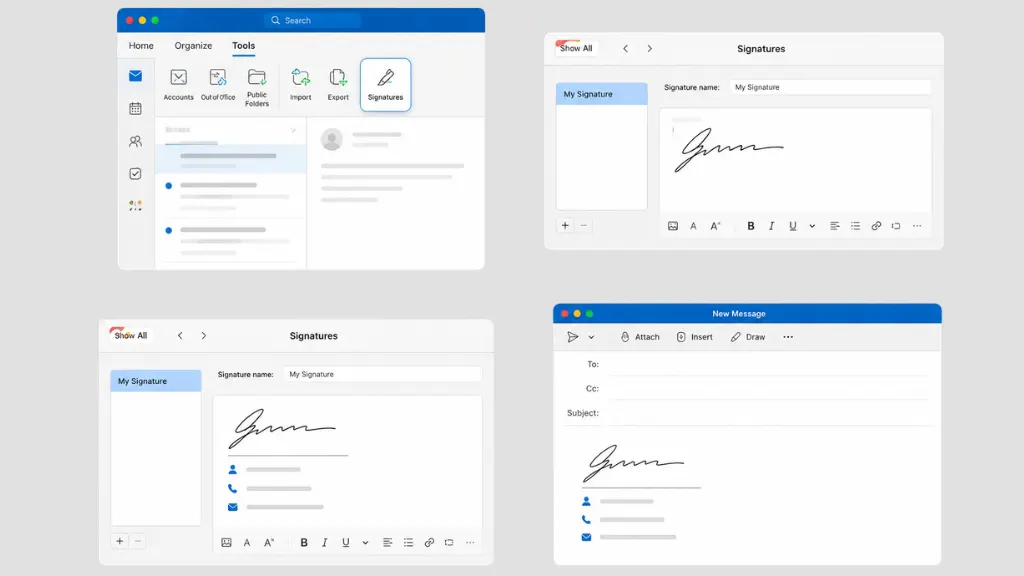
How to Edit Signature in Outlook for Mac

How to Edit Signature in Outlook for Mac

Mac users can update their Outlook signature in just a few steps.

Open Outlook

Go to:

Outlook → Preferences → Signatures

Choose the signature you want to edit.

Update the information as needed.

Click Save.

Your new signature will automatically be used according to your settings.
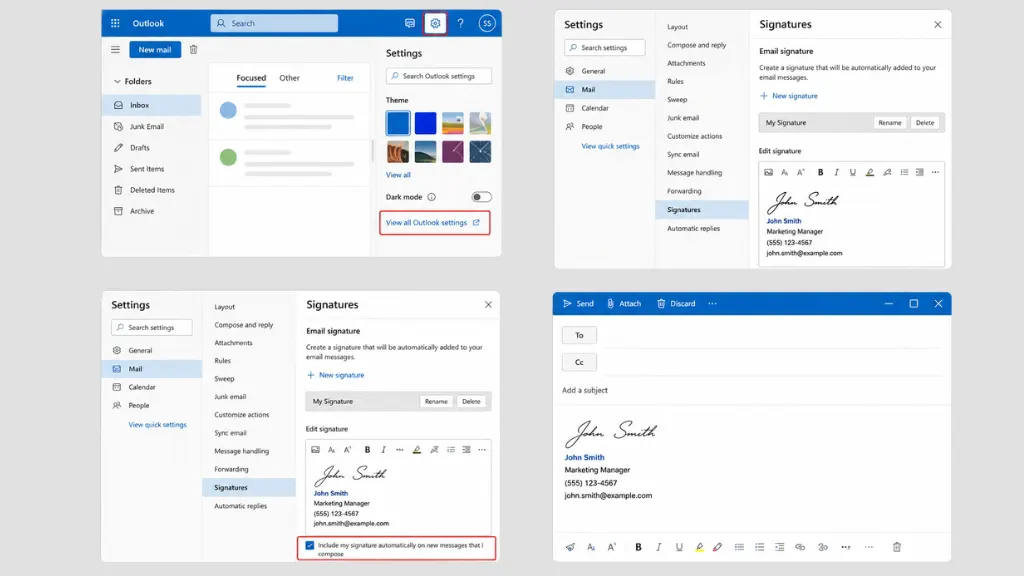
How to Edit Signature in Outlook Web

How to Edit Signature in Outlook Web (Outlook.com or Microsoft 365)

If you use Outlook in your browser:

1) Sign in to Outlook.

2) Click the Settings gear icon.

3) Select:

Mail → Compose and Reply

4) Your signature editor appears.

Edit:

  • Text
  • Links
  • Images
  • Formatting
  • Contact information

5) Choose whether to automatically include the signature in:

  • New messages
  • Replies
  • Forwards

Click Save.

That’s it!

How to Edit Signature in the Outlook Mobile App

How to Edit Signature in the Outlook Mobile App

The Outlook mobile app supports a simple text signature.

Android

Open Outlook. Tap your profile picture.

Go to:

Settings → Signature

Edit the text.

Tap the checkmark to save.

iPhone

Open Outlook. Tap your profile icon.

Go to:

Settings → Signature

Update the signature.

Save your changes.

Unlike the desktop version, the mobile app doesn’t support advanced formatting such as logos, tables, or custom fonts.

How to Add an Image or Logo to Your Signature

If you’re using Outlook on Windows, Mac, or the web:

  1. Open the Signature editor.
  2. Place the cursor where you want the image.
  3. Click the Insert Picture icon.
  4. Select your company logo or personal photo.
  5. Resize the image if necessary.
  6. Save your signature.

A clean, optimized logo enhances your professional appearance.

Conclusion

The quickest way to keep your emails professional and up to date is to amend your Outlook signature. It helps you to modify signs according to your preferences. A signature is one of the key points that may require a change due to different purposes; thus, it is essential you know how to alter or modify your signature in Outlook.

Outlook for Windows, Outlook for Mac, or the web version of Outlook or mobile devices; no matter what type of Outlook you use, this will only take a couple of minutes. Regularly checking your signature means that recipients will always have the right contact details, so it strengthens your professional or business brand. With every email you send, a properly crafted signature can leave an impression.

FAQ's

Can I have multiple signatures in Outlook?

Yes. Outlook allows you to create multiple signatures and assign different ones for new emails, replies, and forwards.

Why can't I edit my Outlook signature?

In some organizations, IT administrators manage email signatures centrally. If the signature editor is unavailable, contact your IT department.

Does Outlook mobile support images in signatures?

No. The Outlook mobile app primarily supports plain-text signatures and limited formatting.

Can I add HTML to my Outlook signature?

Yes. Outlook desktop supports HTML-based signatures, allowing advanced layouts, images, tables, and clickable links.

Will my signature sync across devices?

Not always. Depending on your Outlook version and Microsoft account settings, signatures may need to be configured separately on desktop, web, and mobile.

  • Facebook
  • LinkedIn
  • WhatsApp

(Visited 1 times, 1 visits today)

Post navigation

< Previous

Leave a Reply Cancel reply

Your email address will not be published. Required fields are marked *

Top Services:

  • Clipping Path Service
  • Car Image Editing Service
  • Ghost Mannequin Service
  • Product Photo Editing Service
  • Multiple Clipping Path Service
  • Ghost Mannequin Service
  • Color Change Service
  • Drop Shadow Service
  • Color Change Service
  • Photo Editing Service
  • Image Masking Service

Popular posts:

  • How to Create See-Through Clothes in Photoshop: Easy…Photoshop see-through clothing effect guide
  • How to Move Eyes in Photoshop and Online ToolsHow to Move Eyes in Photoshop and Online Tools
  • How to Clip in GIMP: Step-by-Step Guide to Clipping…Step-by-Step Guide to Clipping Mask & Image Editing
  • How to Reverse Video in Photoshop: Photoshop GuideHow to Reverse Video in Photoshop Photoshop Guide
  • How to Export Photoshop ActionsHow to Export Photoshop Actions
  • How to Create an Alpha Channel in Photoshop?How to Create an Alpha Channel
  • How To Fix A Lazy Eye In PhotoshopHow To Fix A Lazy Eye In Photoshop
  • How to Fix a Dark Polaroid Picture? Easy Solution to…How to Fix a Dark Polaroid Picture
  • 10 Professional Photo Manipulation Artists You Must Follow10 Professional Photo Manipulation Artists You Must Follow
  • Guide to Using Blood Brushes for Photoshop:…Guide to Using Blood Brushes for Photoshop Everything You Need to Know

Recent Post

  • How to Edit Signature in Outlook: A Complete Guide
  • How to Edit Photos on iPhone: A Complete Beginner to Pro Guide
  • How to Edit Videos on iPhone: A Complete Beginner’s Guide
  • How to Clipping Path in Photoshop: A Step-by-Step Guide
  • How to Make a Clipping Path in Illustrator: A Step-by-Step Guide

Categories

  • Background Removal
  • Car Photo Editing
  • Clipping Path
  • Color Correction
  • Ghost Mannequin
  • Image Masking
  • Photo Editing
  • Photo Editing Services
  • Photo Retouching
  • Product Photo Editing
  • Tutorial
  • Vector Editing

About CCI

Clipping Creations India is a brand operated by Arafin Media. Here, every pixel tells a story. We offer our unparalleled service and invest our most talented minds at your solution whether you are a photographer or an agency. We are the gateway to exceptional photo editing services!

Get Your Quote

Quick Menu

  • About Us
  • Contact Us
  • Blog
  • Terms and Conditions
  • Privacy & Policy

Payment Method

  • PayPal
  • Stripe
  • Western Union
  • Skrill
  • Payoneer
  • Wise

Get In Touch

+8801715-491890

hello@clippingcreationsindia.com

Canada Office: 1401-2900 Carling Ave. Ottawa, ON, K2B 7J6

India Office: C-20, Lajpat Nagar 3, New Delhi, Delhi 110024, India

Bangladesh Office: 15 Bijoy Nagar, Abdur Rouf Tower (6th Floor), Dhaka – 1000, Bangladesh

Copyright © 2012 - 2026 Clipping Creations India | All rights reserved.

  • facebook
  • twitter
  • instagram
  • pinterest
  • linkedin

Live Chat