
How to Make a Photo Less Blurry?
- August 22, 2026
Sometimes we take pictures, but for some reason the pictures look blurry. So, we need to remove the blur from the picture. A blurry image does not look good, and we need to fix it. So, today we will show you how to make a photo less blurry in Photoshop. You can remove blur from any image by following this tutorial.
In this guide, I will show you when you might need to remove blur from a picture. How can you do that in some easy steps? The steps are given below
How to Make a Photo Less Blurry (Step-by-Step Guide)
This step-by-step guide shows you how to remove blur from an image. Follow these instructions to remove blur like a pro. The steps are given below
1. Open the image in Photoshop.
First, select the image you want to deblur and open it in Photoshop.
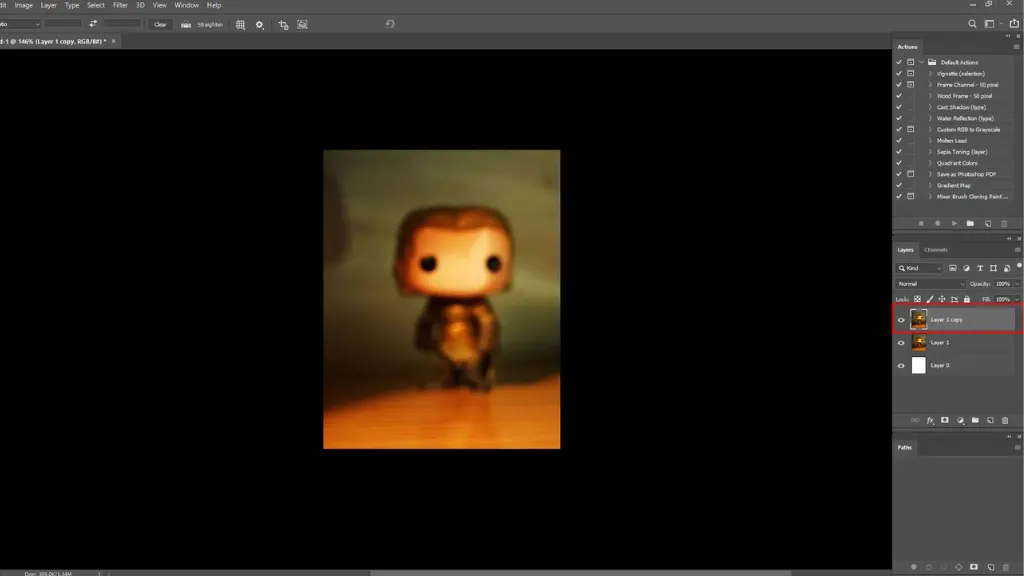
2. Make a duplicate layer
When you open the image in Photoshop, look to the right in the Layers panel. Select the layer and click the right button, then select Duplicate Layer. Make a duplicate layer.
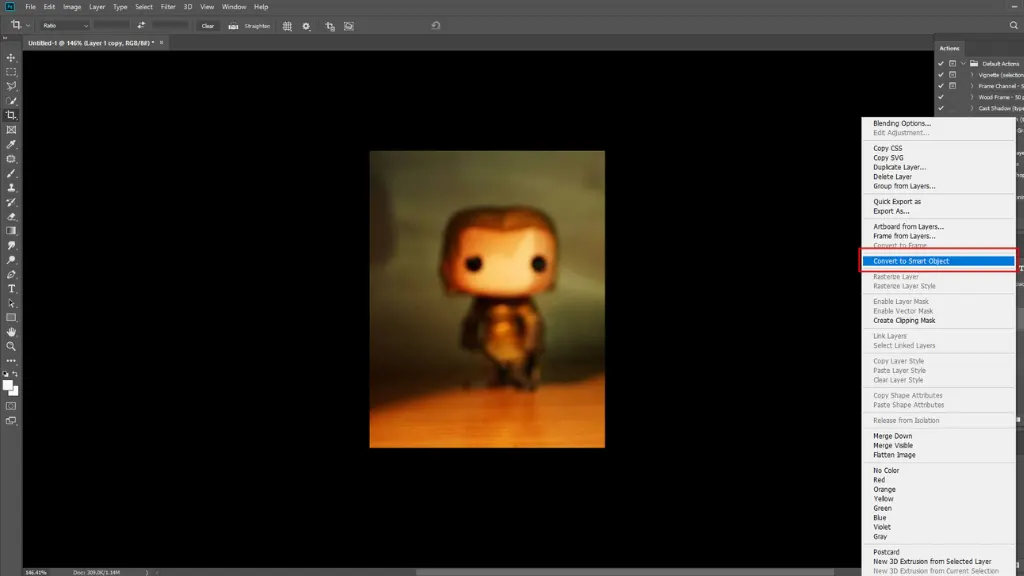
3. Convert the layer.
When you have a duplicate layer, now select the duplicate layer and click the “right button” and select “Convert to smart object.”
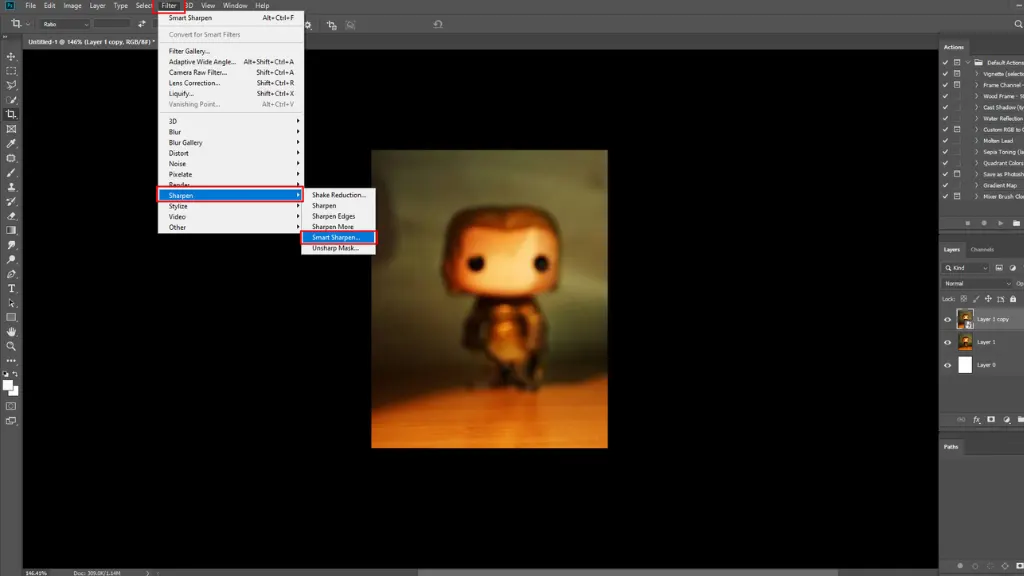
4. Click the “Filter” in the top bar.
Click the “Filter” in the top bar and scroll down to “Sharpen,” and a new dropdown will open where you will get “Smart Sharpen.” Select “Smart Sharpen.”
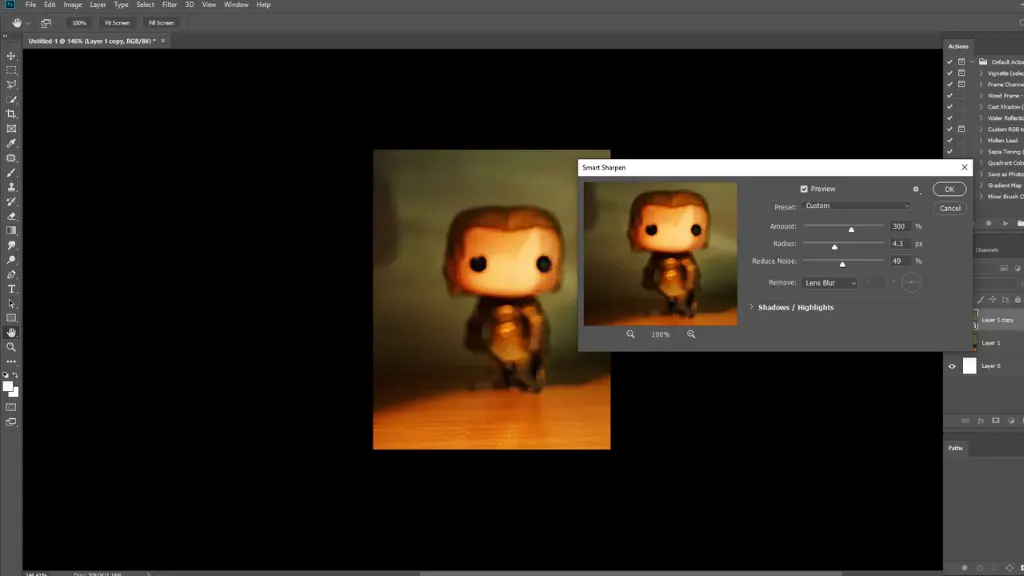
5. Adjust the “Amount,” “Radius,” and “Reduce Noise.”
When you click on “Smart Sharpen,” a new window will open. Here you will get some options like “amount,” “radius,” and “reduce noise.” Now adjust these settings based on the image condition and your needs.
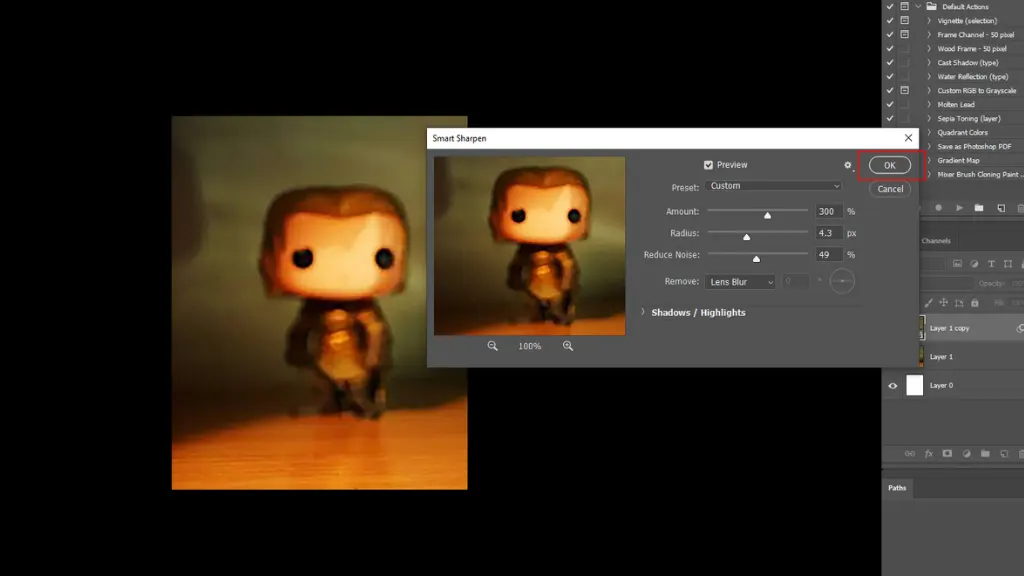
6. Click “Ok” and save it.
Once you have made all the adjustments and the image looks much better, click “OK.” The image is now ready to meet your needs. Save the file, and the process ends.
Conclusion
Editing a blurry image is not just for professional image editing. You may need it for personal purposes. So, learning how to make a photo less blurry is a very good idea. This will help you meet your needs, both professionally and personally.
The guide works well, and this tutorial is easy because it’s explained step by step, so you can learn it. There are different ways to remove blur from a picture; for example, you can do it in Photoshop. This tutorial will help you remove blur from any image in Photoshop. Now you can remove blur from the picture. You can read our latest blogs to learn more about image editing.